Creating and Managing AI Toolkit Services
pgEdge Cloud databases can be deployed with an installed and configured
MCP server, ready for connections. After deployment, use the Services
dialog to open the Add MCP Server popup to add AI functionality to an
existing cluster or to manage defined functionality.
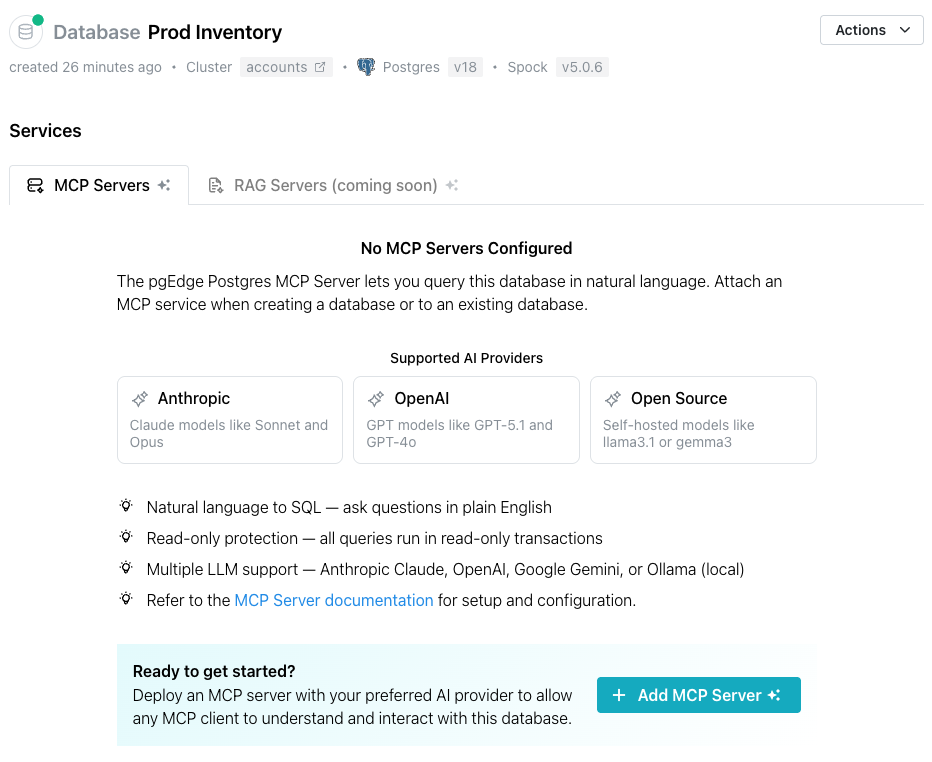
Adding an MCP Server
Select the Add MCP Server button to access the Add MCP Server popup
and define an MCP server, and optionally enable an associated LLM.
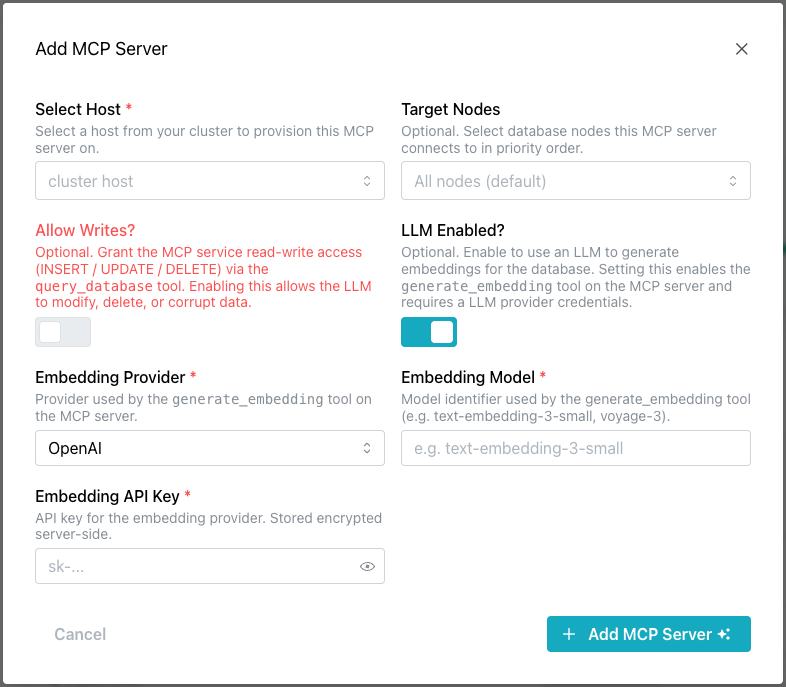
Use the fields on the Add MCP Server popup to describe the server
and, optionally, the LLM:
-
Use the
Select Hostfield to select the cluster host on which this MCP server will be provisioned and run. -
Use the
Target Nodesfield to optionally select the database nodes this MCP server connects to, in priority order. Defaults to all nodes. -
Use the
Allow Writes?toggle to optionally grant the MCP service read-write access (INSERT / UPDATE / DELETE) via thequery_databasetool. Note that allowing read-write access could potentially expose your data to unexpected or unwanted modifications. -
Use the
LLM Enabled?toggle to optionally enable an LLM to generate embeddings for the database. Enabling this activates thegenerate_embeddingtool on the MCP server and requires LLM provider credentials. To enable an LLM, provide the following information:-
Use the
Embedding Providerfield to select the provider used by thegenerate_embeddingtool on the MCP server. -
Use the
Embedding Modelfield to specify the model identifier used by thegenerate_embeddingtool (e.g.text-embedding-3-small,voyage-3). -
Use the
Embedding API Keyfield to enter the API key for the selected embedding provider. This key is stored encrypted server-side.
-
When you've defined the MCP server (with optional LLM functionality), select
the + Add MCP Server button to update your database.
When the deployment is complete, details about the MCP server deployment are displayed in the Services dialog.
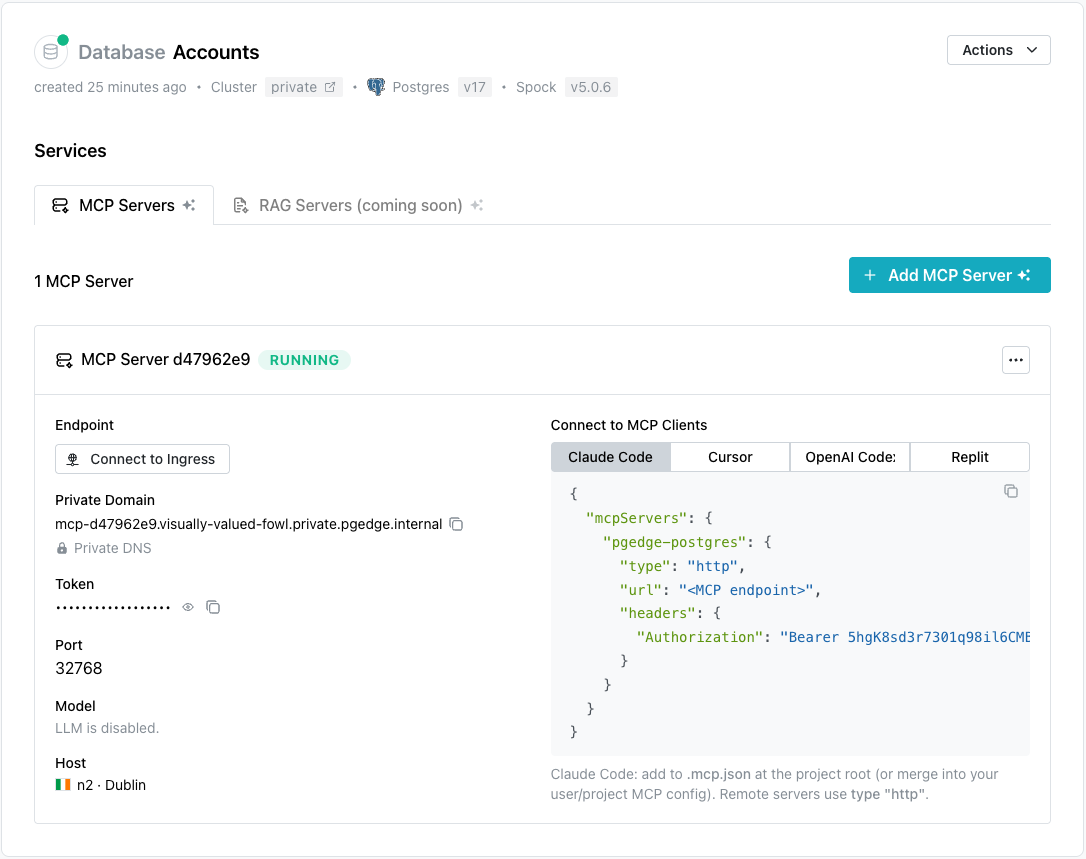
Connecting a Client to the MCP Server
The steps you use to connect a client to the MCP server vary by client
and platform. The Services dialog displays connection details for several
popular clients under the Connect to MCP Clients label:
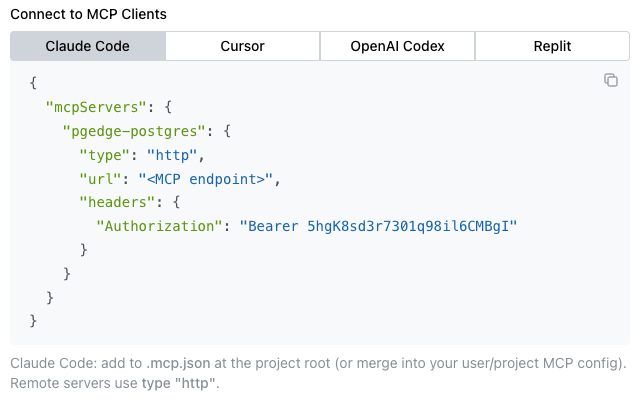
Select a tab to view and copy connection details for the client you wish to use. Choose from:
Adding a RAG Server
Select the Add RAG Server button to access the Add RAG Server popup
and define an MCP server, and optionally enable an associated LLM.
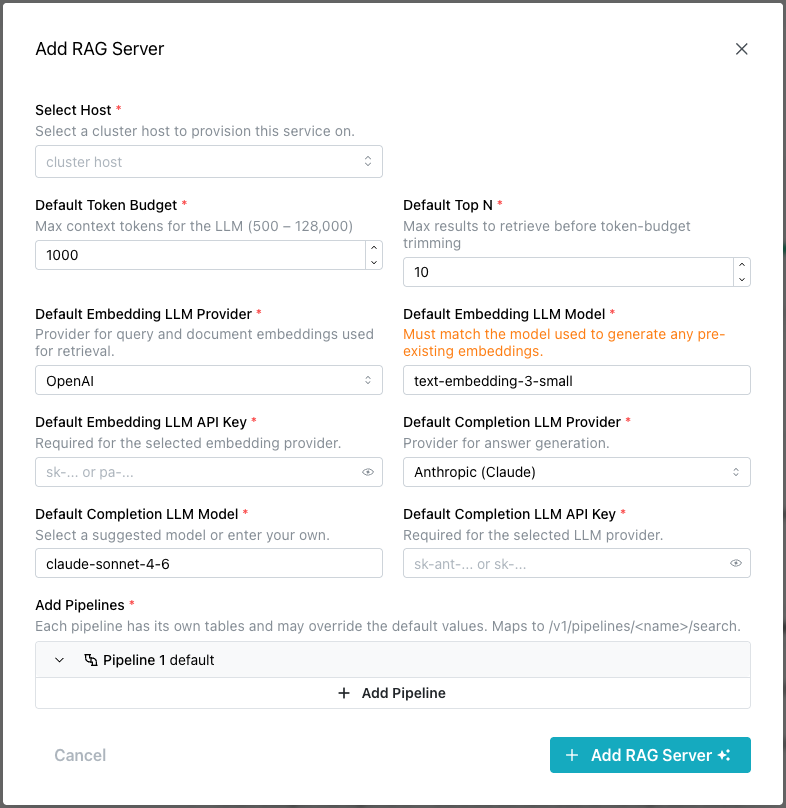
Use the fields on the Add MCP Server popup to describe the server:
-
Use the
Select Hostfield to select the cluster host on which this RAG server service will be provisioned and run. -
Use the
Default Token Budgetfield to set the maximum number of context tokens (500–128,000) the LLM can process per request. -
Use the
Default Top Nfield to set the number of results retrieved from the vector store before they are trimmed to fit within the token budget. -
Use the
Default Embedding LLM Providerfield to select the provider whose model will generate vector embeddings for queries and documents during retrieval. -
Use the
Default Embedding LLM Modelfield to specify the embedding model to use. This must match the model used to generate any pre-existing embeddings in your dataset. -
Use the
Default Embedding LLM API Keyfield to enter the API key for authenticating with the selected embedding provider. -
Use the
Default Completion LLM Providerfield to select the provider whose model will be used for answer generation after relevant documents are retrieved. -
Use the
Default Completion LLM Modelfield to specify the model used for answer generation. You can select a suggested model or enter your own. -
Use the
Default Completion LLM API Keyfield to enter the API key for authenticating with the selected completion provider. -
Use the
Add Pipelinesfield to define one or more named pipelines, each with its own document tables and the option to override the default settings above. Each pipeline is accessible via/v1/pipelines/<name>/search.